Articles

Copilot Blank Chat in IntelliJ? Create the Missing Files to Fix It

Image
        Unhandled exception ...  com.github.copilot.platform.utils.VirtualFileNotFoundException : Cannot find virtual file for URL: file:///C:/...   If Copilot Chat is blank in IntelliJ and you see VirtualFileNotFoundException with Cannot find virtual file for URL, Copilot is referencing a deleted file. Recreate the file (even empty), sync/restart, done.  Why it happens Copilot keeps a reference to a file you deleted or moved. IntelliJ’s VFS can’t resolve it → the chat UI crashes. The fast fix (what worked for me) Recreate the exact folder path shown in the error. Create the missing file (an empty Java class with minimal valid code is fine). (For example, in my case I created the Java file and added a valid class with minimal content inside it.) If you don't write a valid class, you will get another error, so make sure to add at least the basic structure inside the file. Restart IntelliJ (Ctrl+Alt+Y or File → Invalidate Caches / Restart). (In my cas...

Restoring the Local Changes Tab in IntelliJ IDEA (2024)

Image
Restoring the Local Changes Tab in IntelliJ IDEA (2024) Local change tab not showing up in last version of IntelliJ (2024) :  In the latest version of IntelliJ IDEA(2024), the Local Changes and Shelf features have been moved to a separate Commit tool window on the left. If you prefer the old behavior and layout, follow these steps:     Open IntelliJ IDEA.     Go to Version Control in the settings.     Under the Commit section, uncheck the option for “ Use non-modal commit interface ” The familiar Local Changes tab will now appear inside the Git tool window. That’s it! You’ll have the Local Changes tab back as before. Enjoy 😊

Resolving Concurrency Conflicts in Java REST APIs: A Case of 412 Precondition Failed

Image
  Resolving Concurrency Conflicts in Java REST APIs: A Case of 412 Precondition Failed   While developing a Java REST API, we encountered a perplexing issue: two deployed endpoints were returning unexpected results. The first endpoint called operated correctly, while the second returned a 412 Precondition Failed error . This behavior was consistent regardless of the calling order of the endpoints. Upon investigation, we discovered that the issue was related to concurrency management and the ETags returned by our API. By refining the entity version comparison logic, focusing on specific attributes such as the ID or other relevant fields, we resolved this conflict and ensured the smooth operation of our endpoints. While this was the solution to our particular issue, it’s important to remember that similar symptoms can stem from different underlying problems. However, if you’re facing a similar challenge, it’s worth taking a closer look at the concurrency m...

Java: Continue and Break Instructions

Image
  Continue and Break Instructions in Java   1. Continue Statement: The "continue" statement serves as a control tool for loops. When applied, it allows you to skip the current iteration of the loop and proceed directly to the next one, enhancing code efficiency by avoiding unnecessary operations. 2. Break Statement: The "break" statement acts as an exit mechanism within loops, offering immediate termination regardless of whether the loop's defined condition has been met. It's a valuable tool to have precise control over loop execution.    

Java Labels: A Simple Guide

Image
What Are Java Labels?   Labels in Java are identifiers used to mark a specific point within code blocks. When dealing with nested loops, labels help you control which loop you exit from or continue within.  They work with break and continue statements to give you more control over your loops. myLabel: // This is a label for ( int i = 0; i < 3; i++) { for ( int j = 0; j < 3; j++) { if (j == 1) { break myLabel; // Exits the outer loop } System.out.println ( "i: " + i + ", j: " + j ); } } Labels make your code clearer when you have complex loops. They let you exit or skip multiple loops at once, making your code easier to read and debug. They offer better control over nested loops. Keep them in mind for those tricky scenarios.

What is a Functional Interface in Java?

Image
Definition A functional interface in Java must have exactly one abstract method and may have other default or static methods. Example @FunctionalInterface public interface Calculator {    int add ( int a, int b );    default void log ( String message ) {      System.out.println ( "Log: " + message );   }    static void showResult ( int result ) {      System.out.println ( "Result: " + result );   } } // Using Lambda Calculator calculator = ( a, b ) -> a + b ; int result = calculator.add ( 5, 3 ); Calculator.showResult ( result );   A default method in an interface offers a built-in implementation that can be replaced by any class using it. This feature is exclusive to interfaces.

Quick Reminder: Default Values for Java Data Types

Image
In Java, each primitive data type has a default value automatically assigned when declaring an uninitialized variable.   Understanding these default values is essential to prevent runtime errors. Below is a table summarizing this information.   Data Type Default Value byte 0 char '\u0000' short 0 int 0 float 0.0f long 0L double 0.0d

Quick Reminder: Java Primitive Types Sizes

Image
Quick Reminder:   Java's primitive types and their sizes : Data Type Size char 2 bytes (16 bits) short 2 bytes (16 bits) int 4 bytes (32 bits) float 4 bytes (32 bits) long 8 bytes (64 bits) double 8 bytes (64 bits)

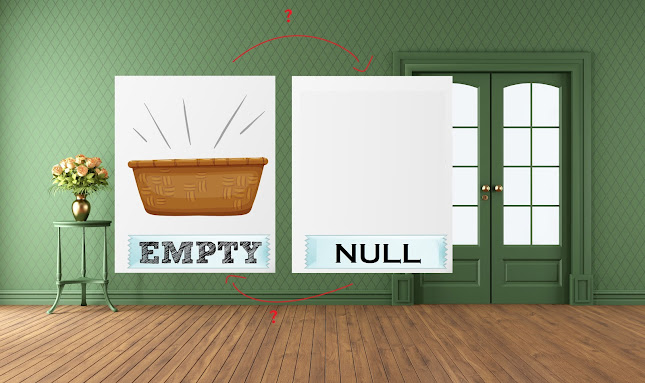
The Importance of Checking for Null Values and the Order of Conditions in Java

Image
If you have been programming in Java for a while, you have probably encountered NullPointerExceptions at some point. NullPointerExceptions occur when you try to call a method or access a variable on a null object reference.  In this article, we will discuss a common cause of NullPointerException and how to avoid it. Consider the following code: !foundEmployeeFromAPI.getFirstName().isEmpty() && !foundEmployeeFromAPI.getFirstName() == null This code is checking whether the firstName field of the foundEmployeeFromAPI object is not empty and not null. However, if the firstName field is null, then we will have a NullPointerException in Java. This is because we are calling the isEmpty() method on a null object reference. To avoid this issue, we should first check if the object reference is not null before checking if it is empty. Here is the corrected line of code: foundEmployeeFromAPI.getFirstName() != null && !foundEmployeeFromAPI.getFirstName().isEmpty() To summarize...

Circular Dependency Warning in IntelliJ with Maven in a Java Web Project

Image
Circular Dependency Warning in IntelliJ with Maven in a Java Web Project : When working with a Java web project using Maven, you may encounter a circular dependency warning in IntelliJ. This can happen when a module depends on another module that also depends on the first module, creating a loop. The warning indicates that adding a new dependency may create a circular dependency and lead to a build failure. To solve this issue, you can try several solutions :  Split your project into smaller modules with clear responsibilities. This can help you identify and manage dependencies more effectively. For example, you can move the HrRestApiConnectionException class to a separate module and then include that module as a dependency in the modules that need it. Use Maven exclusions: Another way to solve circular dependency issues is to use Maven exclusions to remove unnecessary dependencies. You can specify the dependencies that you want to exclude from your module in the pom.xml file. For...